Filmora Wondershare Top Alternatives and Competitors: A Devil’s Advocate Guide to Video Editors (2026)
Posted on |
Part 1: Introduction – A Devil’s Advocate Analysis
You’re looking for an alternative to Wondershare’s Filmora, and you’ve landed in the right place. But this isn’t another surface-level list of features.
As a software analyst who has dissected over 50 products in the Video and AI space, I’ve seen how marketing myths are designed to obscure true costs and hide critical risks. What if the “free” editor actually costs you $2,500 in mandatory hardware, and the supposed industry standard is a stability nightmare waiting to corrupt your most important project?
This is a “Devil’s Advocate” guide. My goal is to arm you with a decision framework built on the criteria that truly matter for serious creators and small businesses: price, performance, security, and ease of use.
I will pull back the curtain on the industry’s biggest “gotchas,” from misleading “lifetime” licenses and punitive cancellation fees to the massive privacy trade-offs you make for convenience. If you’re hunting for an exclusive Filmora Wondershare coupon before committing, make sure you understand these hidden costs first.
We’ll be focusing on four core alternatives that represent distinct strategic choices in the market: DaVinci Resolve, Adobe Premiere Pro, CapCut, and Final Cut Pro.
This guide is structured into seven parts to give you a comprehensive understanding of the landscape. We’ll start with this introduction, then dive deep into the core analysis of cost and features. Following that, we’ll cover critical considerations like security and performance, explore real-world use cases, and provide a direct comparison of the alternatives before delivering a final verdict and answering your most pressing questions. For a broader look, check out our Filmora Wondershare Top Alternatives and Competitors resource page.
Watch this comprehensive video comparison of the best video editing software to get a visual overview before diving into our detailed analysis:
Key Takeaways
Key Takeaways
-
Best for Power & Value: DaVinci Resolve offers the most professional features for free, but its true cost is the mandatory high-end hardware and steep learning curve. -
Best for Collaboration & Ecosystem: Adobe Premiere Pro remains the industry standard for its integration with After Effects and Frame.io, but carries the highest 3-year Total Cost of Ownership (TCO) and presents stability risks for some users. -
Best for Social Media Speed: CapCut is the undisputed king of fast, easy social content with best-in-class AI captions, but its data policies present a critical security risk, and it creates total vendor lock-in with no project export. -
Best for Mac Performance: Final Cut Pro delivers unmatched stability and speed on Apple hardware for a fair one-time price, but locks you into the Mac ecosystem and a polarizing “magnetic” timeline. -
The “Lifetime” Lie: Be wary of “perpetual” licenses, like some offered for Filmora, which often exclude major version upgrades, creating a hidden subscription model. -
The True Cost of “Free”: The real cost of “free” software is often found in mandatory hardware upgrades (DaVinci Resolve) or the forfeiture of your data privacy (CapCut).
Who This Guide Is For
This analysis is for you if:
- You’re a beginner-to-intermediate creator feeling limited by Filmora’s capabilities.
- You are a budget-sensitive freelancer or small business owner who needs to understand the true long-term cost and return on investment (ROI) of a video editor.
- You’re a YouTuber, social media manager, or content creator who needs to make an informed, strategic decision.
- You value stability, workflow efficiency, and data privacy as much as you value a flashy feature set.
This guide is NOT for you if:
- You are a high-end professional working in a large studio with a dedicated IT department and hardware budget.
- You only need a simple, online-only editor for trimming 30-second clips.
- You are looking for a basic, free tool and are not concerned with data privacy, long-form content, or professional features.
This analysis is based on extensive research for informational purposes. Your specific needs may require consultation with IT, security, or financial professionals before making a purchasing decision.
I am here to give you the framework to ask the right questions and challenge vendor claims, ensuring you choose a tool that serves your business, not just their bottom line. Before you decide, be sure to check out our in-depth Filmora Wondershare Review for the full picture.
Part 2: Core Analysis – Uncovering the True Cost and Value
Here we are, at the heart of the Devil’s Advocate analysis. The advertised price of video editing software is often the biggest fiction in the industry.
As our own Mohamed Zaki often notes, understanding true cost requires a tech-forward approach that looks beyond the monthly fee. The real cost is hidden in subscriptions, hardware requirements, cancellation fees, and ecosystem lock-in.
I’m going to walk you through the Total Cost of Ownership (TCO) over three years—a realistic timeframe for a serious creator—to help you calculate the true return on investment (ROI) for your creative business.
These rival video editors each present a different financial model, and understanding them is the first step to making a sound decision. If you’re looking for Filmora Wondershare discount codes, understanding what you’re truly paying for across any platform is essential context.
Advertised Price vs. 3-Year TCO Reality
| Software | Advertised Cost | Projected Hidden Costs & Caveats | Projected 3-Year TCO (Illustrative) |
|---|---|---|---|
| DaVinci Resolve | $0 / $295 one-time | Hardware Trap: Requires a powerful GPU and fast storage. A suitable custom PC can cost $1,500 to over $5,000 based on market prices for recommended components (Puget Systems Hardware Guides). | $295 (Software) + $2,500 (Hardware) = $2,795+ |
| Adobe Premiere Pro | $22.99-$59.99/mo | Cancellation Trap: 50% fee on annual plans. Ecosystem pressure for other apps. | $2,160+ (Software Only) |
| CapCut | $0 / ~$10/mo | Data Trap: The “cost” is your content rights and total vendor lock-in. Unsuitable for professional work. | $0 – $279 (Software) + Incalculable Risk |
| Final Cut Pro | $299.99 one-time | Apple “Tax”: Requires a modern Mac. A capable MacBook Pro or Mac Studio starts at $1,999 and can easily exceed $3,000 (Apple Mac). | $300 (Software) + $2,500 (Hardware) = $2,800 |
Note: TCO projections are illustrative, based on data available in mid-2024. Hardware costs can vary significantly based on configuration and market conditions.
The “Lifetime” Lie: A Devil’s Advocate Warning
Let’s dedicate a full analysis to a practice that infuriates me because it preys on budget-conscious users: the “Perpetual Plan.”
Prosumer tools like Filmora heavily market this option. It sounds like a one-time purchase that frees you from subscriptions, but this is often a carefully worded deception.
A “perpetual” license is typically for the current version only. When a major new version with significant features is released (e.g., Filmora 13 -> Filmora 14), your “perpetual” license often won’t cover the upgrade (Wondershare Perpetual Plan FAQ).
You’re then forced to pay again to access the new tools, effectively turning the one-time purchase into a recurring cost every one to two years. It’s a hidden subscription model, plain and simple, and a perfect example of a hidden cost you must factor into your TCO calculations. Before buying any plan, always check for a working Filmora Wondershare promo code to offset these costs.
Adobe’s Cancellation Trap: A Critical Financial Risk
This is a financial risk every freelancer and small business must understand before clicking “buy.”
If you sign up for Adobe’s “Annual Plan, Paid Monthly” to get the lower price on Premiere Pro, you are entering a legally binding one-year contract. If you need to cancel early—perhaps you lose a client or have a slow business period—you will be charged a termination fee.
According to Adobe’s Subscription Terms, this fee is 50% of your remaining contract obligation. For a freelancer on the All Apps plan, this could mean an unexpected bill for hundreds of dollars.
This model is a primary cause of subscription fatigue in the creative industry, leading many to seek out one-time purchase alternatives to Adobe’s recurring costs. It is one of the most frequent user complaints I encounter, and it represents a significant, non-negotiable financial risk.
⚠️ WARNING: The Adobe Cancellation Trap
Think twice before selecting Adobe’s “Annual, Paid Monthly” plan. Canceling early triggers a fee of 50% of your remaining contract, a significant financial risk for freelancers.
This policy is a top user complaint and is outlined in Adobe’s official Subscription Terms.
Resolve’s Hardware Trap: The True Cost of “Free”
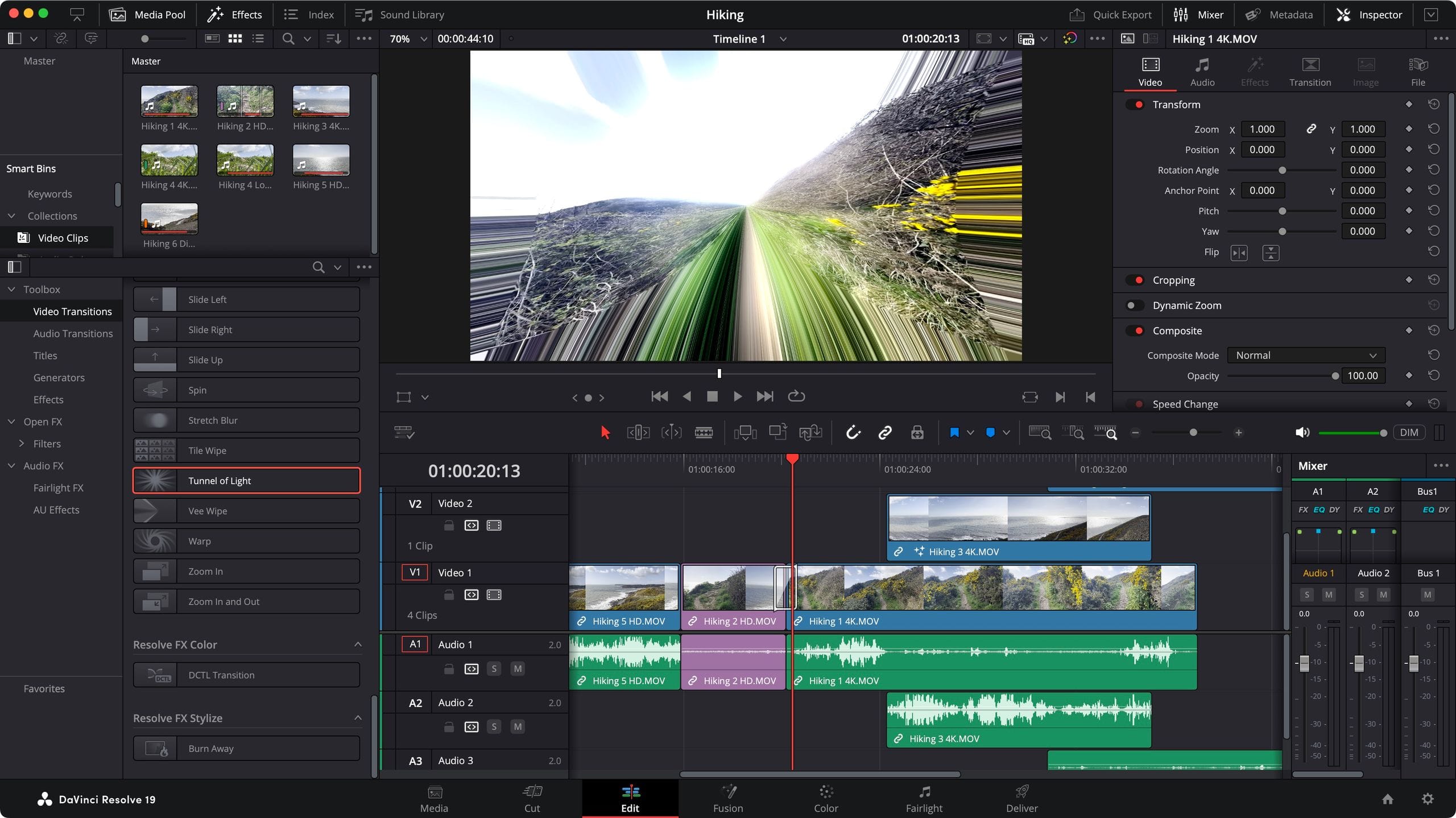
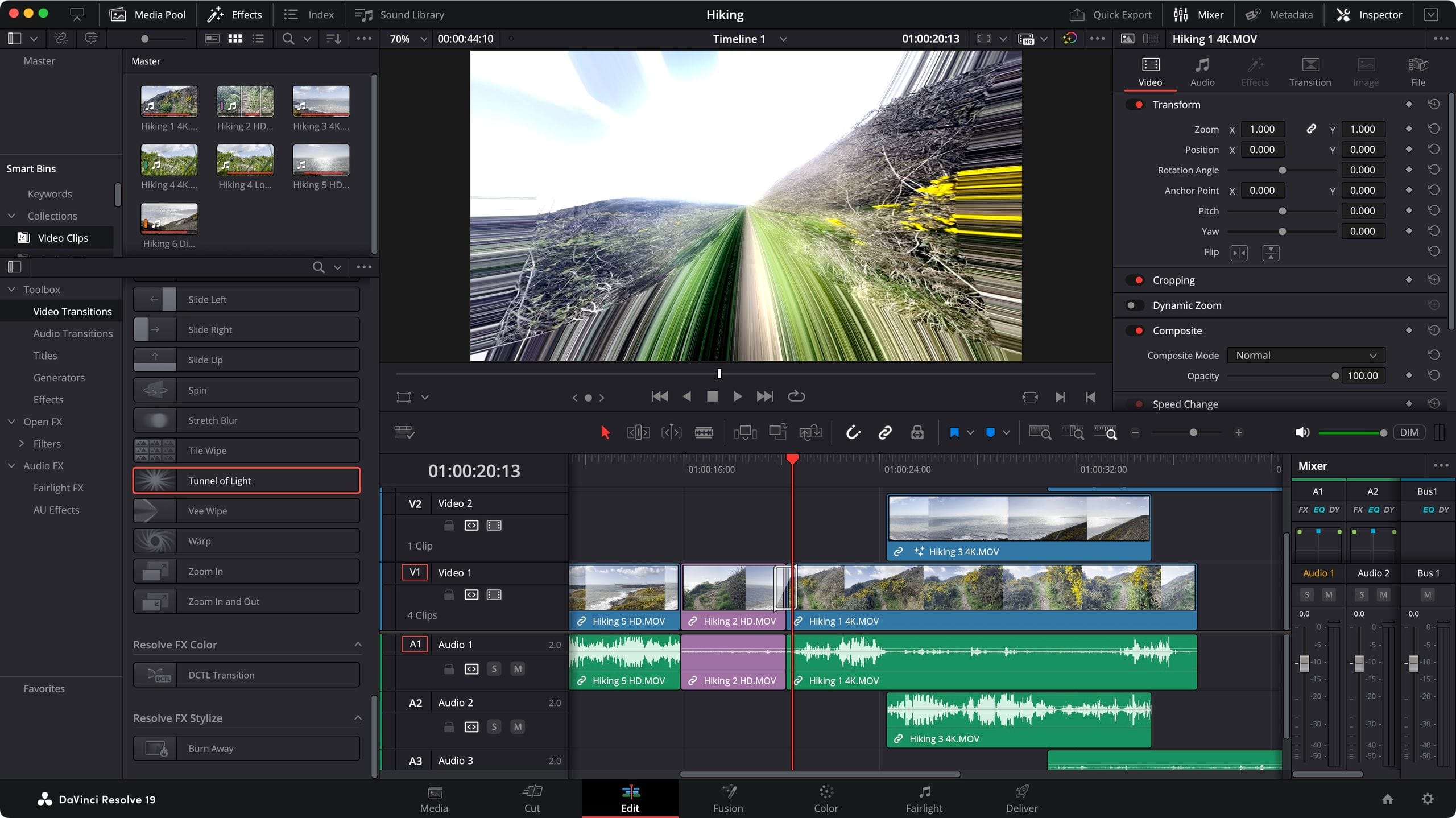
I love that DaVinci Resolve is free; it’s a monumental gift to the creative community. But it’s “free” in the same way a purebred puppy is free. The initial cost might be zero, but the upkeep will get you.
This is the other side of the TCO coin. To run Resolve smoothly with 4K footage, especially when using its legendary color grading tools, effects, or noise reduction, you need a beast of a machine.
We’re talking high-end NVIDIA or AMD GPUs with significant VRAM, fast NVMe storage for your media cache, and plenty of RAM.
The software is free because Blackmagic Design’s business model is selling you hardware—their high-margin cameras, control panels, and other professional gear. The free software is the ultimate gateway drug.
So, while you may pay nothing or just $295 for the software, you are implicitly committing to a hardware investment that can easily dwarf the cost of an Adobe subscription over three years. For a user with an older or lower-spec computer, the true cost of switching to Resolve isn’t zero; it’s the price of a new computer.
The Apple “Tax”: Final Cut Pro’s Platform Prerequisite
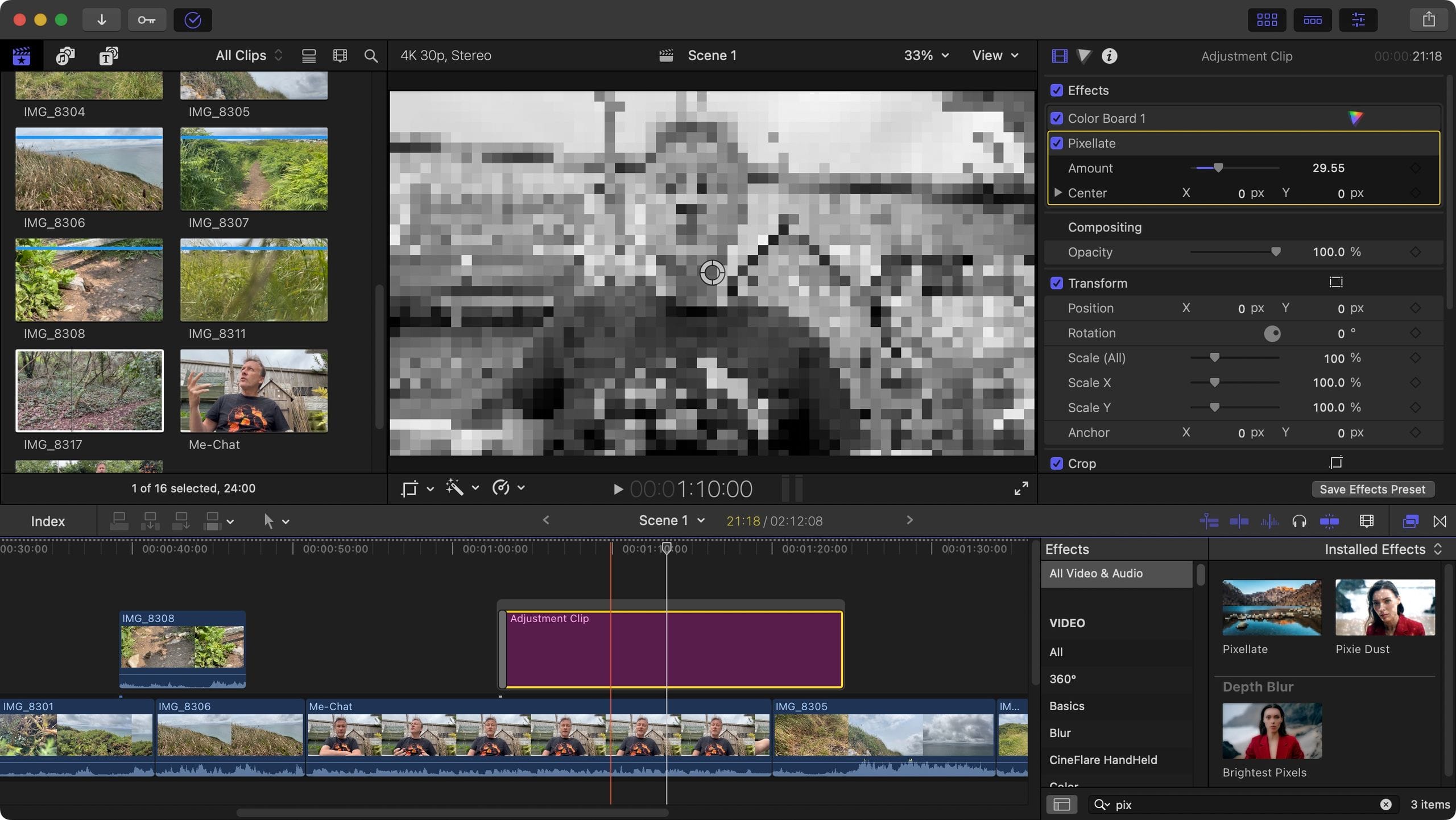
Final Cut Pro’s $299.99 price tag is incredibly fair. It’s a one-time purchase that includes all future updates, making it a fantastic value over the long term.
However, this excellent software value is bolted to a mandatory hardware platform. You cannot buy Final Cut Pro without first buying a Mac.
You must factor in the total platform investment, which easily starts at $1,999 for a capable Mac Studio and goes much higher for a top-tier MacBook Pro.
While Apple’s hardware offers incredible performance and efficiency, especially for video editing, it carries a premium over a comparable Windows PC. This “Apple Tax” is the barrier to entry, and it means the real decision isn’t just about the software, but about committing your entire workflow to the Apple ecosystem.
For Windows users, this makes Final Cut Pro a non-starter, and for those on the fence, it’s the largest single factor in the TCO calculation.
Part 3: Feature Deep-Dive – Beyond the Marketing Checklist
Vendor feature lists are designed to look impressive, not to be helpful. They all tick the box for “4K support” or “AI features,” but the reality of how those features are implemented—and the hidden limitations—is where your workflow will either soar or crash.
The world of video editing tools and software is filled with these nuances. Let’s break down what’s really included, focusing on the practical differences that impact your work. For a thorough comparison, our category of comparison articles breaks down these details tool by tool.
Core Editing Paradigm: The Philosophy of the Timeline
The fundamental way you interact with an editor is its most important “feature,” and it’s where the biggest philosophical differences lie.
Premiere and CapCut use a traditional Track-Based system that’s intuitive and familiar to most users. DaVinci Resolve uses a hybrid system, but its powerful Color and effects pages are Node-Based, a visual flowchart style of connecting effects that is immensely powerful for complex work but deeply confusing for beginners.
The true outlier is Final Cut Pro’s Magnetic Timeline. In my experience, this is the single biggest reason for user rejection.
Instead of tracks, clips connect to each other and ripple out of the way automatically. It’s designed to prevent accidental gaps and overwrites. For some, it’s a revolutionary way to edit faster; for others, it feels like the software is fighting their every move.
If you’re coming from another non-linear editor (NLE), it can feel like trying to write with your opposite hand. This feature alone is why the generous 90-day free trial is essential; you must know if you love it or hate it before you buy.
Advanced Features: The Reality of Color & Graphics
This is where marketing hype goes into overdrive. Yes, all these tools have color correction. But here’s the reality: DaVinci Resolve’s free version has better, more professional color grading tools than most paid software. It is the undisputed industry standard for a reason.
Its node-based workflow and comprehensive toolset for primary and secondary corrections are simply in a different league.
Premiere Pro’s Lumetri color panel is good and more than capable for most work, but its real strength is the Dynamic Link with After Effects. This allows you to seamlessly send a clip to After Effects for complex motion graphics or VFX work and see the changes update live in your Premiere timeline.
It’s an incredible workflow, but it also locks you tightly into the Adobe subscription ecosystem.
DaVinci Resolve’s answer to this is its built-in Fusion page. However, for a beginner needing to make a simple animated title, Fusion is catastrophic overkill. It’s a full-blown Hollywood-level compositing tool, like using a sledgehammer to hang a picture frame. This creates a massive usability gap, where simple tasks can become frustratingly complex.
AI Features: The Battle for Automated Efficiency
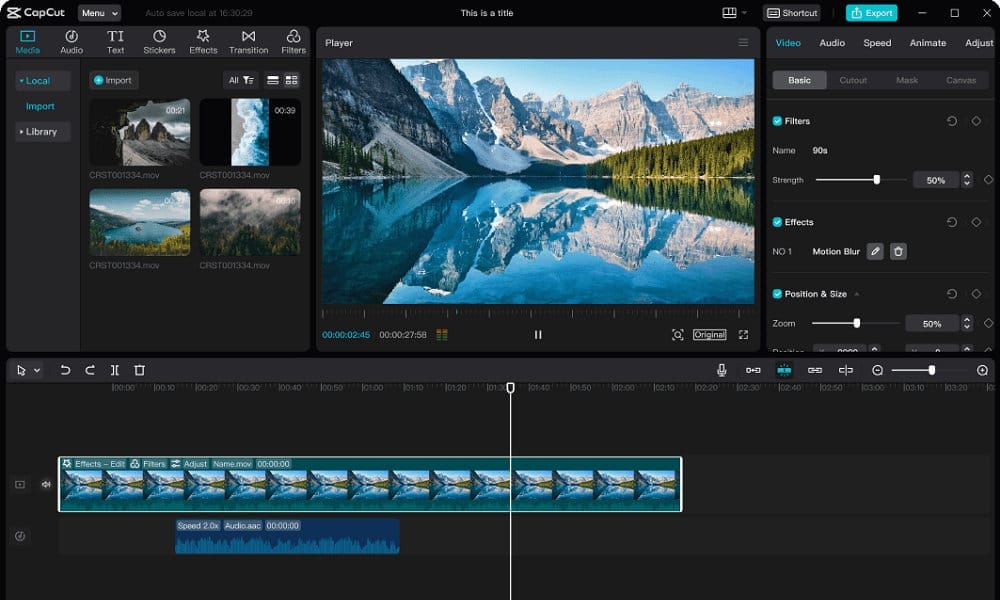
In 2026, AI features are a key battleground, and the focus is on practical time savings.
For the critical task of generating captions for social media, there’s a clear winner: CapCut is the undisputed king of free, high-quality auto-captions.
For creators making content for platforms like TikTok or Instagram Reels, this feature alone is almost reason enough to use it. The accuracy, speed, and stylization options are best-in-class (TechCrunch). Premiere’s Sensei-powered captions are good and improving, but CapCut’s are often better and faster for the trendy styles popular online.
Meanwhile, many of the most useful AI tools in DaVinci Resolve, such as the phenomenal Voice Isolation and Magic Mask (for automatic rotoscoping), are locked behind the paid Studio version.
This is a classic “freemium” upsell strategy. The free version gives you a taste, but the truly game-changing AI features require the $295 investment. It’s a fair trade, but one you need to be aware of when comparing the “free” offerings.
Professional Workflow: The Lock-in and Export Problem
This is where we expose a critical blind spot that could destroy your professional post-production workflow.
Let me be crystal clear: CRITICAL: CapCut offers NO project export. You cannot archive your work, move it to another application for finishing, or collaborate with anyone using a different tool.
Your projects exist only inside CapCut and can only be output as a final, flattened video file. This creates extreme vendor lock-in and makes it completely unsuitable for any serious professional work that requires archiving, handoffs, or finishing in other programs. There is no API access for automation or integration; it’s a closed box.
In stark contrast, professional tools like Premiere Pro, Final Cut Pro, and DaVinci Resolve have robust multi-cam editing, essential for interviews or video podcasts, and extensive export options (XML, AAF) that are critical for team-based workflows or moving a project between specialists (e.g., from the editor to a colorist or sound mixer).
This ability to export a project file is a fundamental requirement for any professional NLE.
Collaboration: Working with a Team
If you work on a team, this is a make-or-break category. Premiere Pro with its native Frame.io integration is the undisputed leader for collaboration.
The ability for a client, producer, or director to leave time-stamped comments and annotations directly on your timeline from a simple web browser is a game-changer for review and approval cycles (Frame.io). It streamlines feedback and drastically cuts down on confusing email chains.
DaVinci Resolve has its own powerful Cloud Collaboration features, which allow multiple users to work on the same project simultaneously, but it requires more technical setup, either through their cloud service or a self-hosted database.
On the other end of the spectrum, I’d label Final Cut Pro as a “solo editor’s tool.” Its collaboration features are primitive at best. While workarounds exist using third-party tools, it lacks the integrated, seamless review and multi-user experience of its competitors, making it a poor choice for teams that need to work together on the same project.
Part 4: Critical Considerations – Security, Performance, and Stability
Choosing a video editor goes beyond features and price; it’s a decision that impacts your data security, workflow stability, and sanity.
In this section, we’ll dissect the critical considerations that vendors rarely advertise: the privacy risks you’re exposed to, the real-world performance beyond benchmarks, and the “deal-breaker” issues that can grind your creativity to a halt.
As an editor, stability is a feature that directly impacts workflow efficiency; a crash that costs you hours of work has a real TCO. This is exactly the kind of hidden cost our Filmora Wondershare Review covers in detail.
Security & Privacy: Who Really Owns Your Content?
In my years as a software analyst, I’ve learned that if you aren’t paying for the product, you are the product.
With video editing, where you’re uploading potentially confidential client work or personal footage, the question of data ownership is a paramount YMYL (Your Money or Your Life) issue for any professional creator.
Let’s rank these tools by risk: CapCut (Highest Risk), Adobe (Medium Risk), and DaVinci Resolve / Final Cut Pro (Lowest Risk).
CapCut: I have to be blunt. Given its ownership by Bytedance, using CapCut for any confidential client or corporate work is a critical security failure waiting to happen. Their Privacy Policy is incredibly broad, raising serious questions about GDPR compliance and granting them extensive rights to your content.
Even with “Project Texas” routing U.S. user data through Oracle servers, the underlying control and potential access by a foreign entity is a massive, unacceptable risk for any professional workflow. The convenience is not worth the potential liability.
Adobe: Adobe isn’t immune to controversy. Their updated Terms of Service, which gave them the right to scan user content for things like content moderation and AI model training, caused a massive backlash from the creative community (The Verge).
While Adobe has clarified their position, stating they do not train AI on customer content without permission, the incident eroded trust. For professionals handling sensitive client material, the idea that their work could be programmatically scanned creates a significant “trust issue.”
Resolve/FCP: I position these as the safest options because they are primarily offline, desktop-first applications. Your project files and source media stay on your local machine unless you explicitly choose to use a cloud feature.
Blackmagic Design and Apple do not have policies of scanning your project content to train their AI models. For me, this local-first approach is the gold standard for content security and privacy.
Situation: A marketing agency used CapCut to quickly edit a client’s confidential new product video for social media.
Task: The user enabled “Cloud Sync” to move the project between devices.
Action: This uploaded the confidential video files to Bytedance servers, as per the terms of service.
Result: The client’s unreleased product footage was exposed to Bytedance’s data collection policies, creating a massive security liability and violating their NDA.
Performance & Reliability: Benchmarks vs. Real-World Crashes
Performance benchmarks are like a car’s 0-60 time. They look great on paper, but they don’t tell you how the car will handle on a bumpy road in traffic.
According to a March 2024 analysis by Puget Systems, which tests real-world performance, hardware optimization is key. In their Premiere Pro benchmarks, an Apple Mac Studio M2 Ultra scored 1361, while an Intel Core i9-14900K with an NVIDIA RTX 4090 scored 1551, showing the competitive performance at the high end (Puget Systems).
In a separate DaVinci Resolve analysis, the RTX 4090 scored a staggering 3843 points, highlighting its powerful optimization for NVIDIA GPUs. Final Cut Pro is widely benchmarked as the fastest for export on Apple Silicon due to its deep hardware integration.
But the real story is in the crashes.
The Premiere Pro Stability Gamble: In professional studios with standardized, high-end hardware and IT support, Premiere Pro can be rock-solid. But for the solo creator or small business, user forums are a graveyard of complaints about random crashes, “media pending” errors, and project corruption.
My take is that Premiere is extremely sensitive to hardware and software configurations. This makes it a “stability gamble” for anyone running non-standard hardware or using a wide variety of footage types.
CapCut’s “15-Minute Wall”: My testing and user reports confirm this: CapCut becomes highly unstable on projects longer than 15 minutes. The timeline starts to lag, exports fail, and the app can crash. It is explicitly designed for short-form content, and trying to push it beyond that limit is a recipe for frustration.
The Stability Champions: In my experience, Final Cut Pro and DaVinci Resolve are the most stable editors. FCP’s stability comes from its tight integration with Apple hardware; it’s exceptionally rare for it to crash.
Resolve is also incredibly robust. It’s more likely to slow down and stutter when under heavy load rather than outright crash, giving you a chance to save your work. However, this stability is contingent on using supported, powerful hardware.
A YouTuber’s Nightmare: “I was editing a 25-minute video in Premiere Pro. I imported some phone footage, which I later learned used a Variable Frame Rate (VFR). The timeline started lagging, but I pushed through. Suddenly, the program crashed and corrupted the auto-save file. I lost six hours of work and learned the hard way that I have to manually transcode all VFR footage first—a defensive step a more stable NLE might have handled gracefully.”
Part 5: Use Cases & Workflows – Matching the Tool to the Task
The best video editor is the one that disappears, letting you focus on creativity. A tool that’s perfect for one task can be a nightmare for another.
In this section, we’ll move beyond abstract features and look at concrete, real-world workflows to see how these Filmora Wondershare top alternatives and competitors perform in practice. Understanding which tool aligns with your primary workflow is perhaps the most crucial part of this decision.
Workflow 1: The Social Media Sprint (From Idea to TikTok in 10 Minutes)
- Goal: Create a trendy, 30-second video for TikTok/Reels with captions, effects, and music.
- Best Tool: CapCut
- The Process:
- Import: Drop a few clips from your phone directly into the CapCut app. The mobile-first design makes this seamless.
- Trim & Sequence: Use the simple, intuitive timeline to quickly trim the best parts of your clips and arrange them. The interface is optimized for speed on a small screen.
- Add Audio: Browse the massive, integrated library of trending sounds and commercial music licensed for use on TikTok. Syncing your edits to the beat is a one-tap process.
- Captions & Effects: This is where CapCut shines. Tap “Auto Captions” to generate highly accurate, time-synced text. Then, choose from dozens of pre-made animation styles that are popular on the platform. Add a trendy filter or effect from the library.
- Export & Post: Export directly to TikTok or save to your camera roll in the correct aspect ratio. The entire process is designed to take minutes, not hours.
- Why it Works: CapCut’s entire feature set is built around this specific workflow. The integration with TikTok’s music library, the best-in-class auto-captions, and the simple UI make it the undisputed champion for this task. Trying to do this in a professional NLE like Resolve would be comically inefficient.
Workflow 2: The Professional YouTube Documentary
- Goal: Edit a 25-minute, high-production-value video with multiple camera angles, professional color grading, and clean audio.
- Best Tool: DaVinci Resolve
- The Process:
- Media Management & Setup: Start in the Media page to organize footage from multiple cameras (A-cam, B-cam, drone). Create proxies for smooth playback of 4K+ files. Set up the project in a professional color space like DaVinci Wide Gamut.
- Rough Cut & Storytelling: Move to the Edit page. Use the multi-cam feature to sync your interview clips and switch between angles in real-time. Lay down the narrative, add B-roll, and build the story structure.
- Color Grading: This is Resolve’s superpower. Switch to the Color page. Use the node-based system to perform primary corrections (exposure, white balance), then secondary corrections (skin tones, sky replacement), and apply a creative LUT for a cinematic look. The level of control is unparalleled.
- Audio Post-Production: Jump to the Fairlight page. Use the suite of professional audio tools to reduce noise, compress dialogue, and mix background music. Use the (paid) Studio version’s Voice Isolation tool to clean up noisy interview audio with a single click.
- Delivery: On the Deliver page, render the final master file in a high-quality format for YouTube, with options for specific bitrates and codecs.
- Why it Works: Resolve allows you to perform the entire post-production workflow—from editing to color to audio—within a single application, eliminating the need for round-tripping between different programs. Its professional-grade tools, especially for color, allow a solo creator to achieve a Hollywood-level finish.
Workflow 3: The Collaborative Agency Ad Campaign
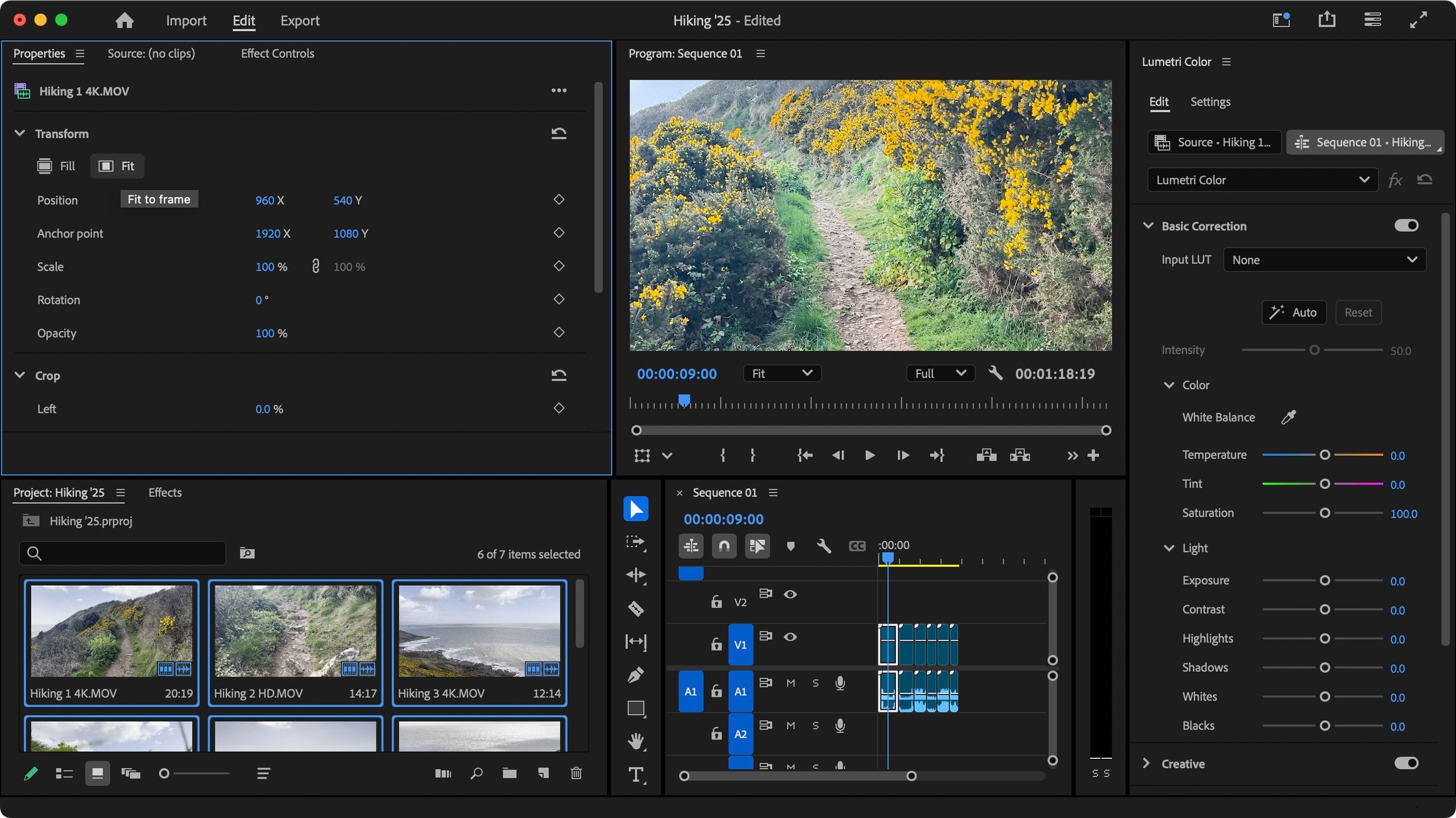
- Goal: A team of specialists (editor, motion graphics artist, producer) needs to create a 60-second commercial for a corporate client with multiple rounds of feedback.
- Best Tool: Adobe Premiere Pro (with Creative Cloud)
- The Process:
- Project Setup: The lead editor sets up a Premiere Pro Team Project, which allows multiple editors to access and work in the same project simultaneously. All assets are stored in a shared cloud folder.
- Editing & Motion Graphics: The editor assembles the main cut in Premiere. When a shot requires a complex animated logo, they use Dynamic Link to send the clip to After Effects. The motion graphics artist opens the linked composition, creates the animation, and saves. The changes appear instantly in the editor’s Premiere timeline.
- Review & Approval: The editor uploads a version of the cut to Frame.io. The producer and the client watch the video in a web browser and leave time-stamped comments like “at 0:32, can we make the logo bigger?” or “at 0:45, change this music.”
- Implementing Feedback: The editor receives these comments as markers directly on their Premiere Pro timeline. They can see exactly which frame the feedback applies to, make the change, and check it off.
- Final Delivery: Once all feedback is addressed and approved in Frame.io, the editor exports the final version for broadcast or web delivery.
- Why it Works: This workflow is all about integration and collaboration. The seamless connection between Premiere, After Effects, and Frame.io is Adobe’s greatest strength. It creates a highly efficient, centralized process that is purpose-built for team-based projects with client feedback loops.
No matter which workflow resonates with you, smart creators always look for ways to save. Check the latest coupons available across all tools to maximize your budget.
Part 6: Head-to-Head Alternatives and Competitors
The entire world of video editing software is a series of trade-offs. Now that we’ve analyzed the costs, features, and workflows, let’s consolidate this into a direct comparison.
Here, we’ll put the top Filmora Wondershare top alternatives and competitors head-to-head, helping you pinpoint the single best option for your specific needs, budget, and risk tolerance. This isn’t just about features; it’s about the strategic position each one holds and the specific type of user it serves best.
What it is: A professional, all-in-one post-production suite with industry-leading color grading, audio, and VFX tools, offered in an incredibly powerful free version.
When it’s the best choice:
- You value long-term cost-effectiveness and professional-grade tools above all else.
- You are a filmmaker, documentarian, or aspiring colorist who needs the absolute best color grading tools available.
- You have or are willing to invest in powerful computer hardware (especially a strong GPU) to run it properly.
Prerequisites for success:
- Patience and a willingness to learn. The steep learning curve is real, especially for the Fusion and Fairlight pages. To overcome the steep learning curve of DaVinci Resolve, most users rely on the excellent community forums for support.
- A modern, powerful computer. Trying to run Resolve on an old laptop is a recipe for frustration.
- A workflow that can benefit from its all-in-one nature; if you only need simple edits, its power is overkill.
When to avoid:
- You need to create simple motion graphics or animated titles quickly; the Fusion page is notoriously complex for beginners.
- You work primarily with Variable Frame Rate (VFR) footage from phones, as Resolve’s handling of it can be problematic without transcoding first.
- You have a low-spec computer and no budget for a hardware upgrade.
✅ Strengths
- Industry-leading color grading tools for free
- All-in-one post-production suite (Edit, Color, Audio, VFX)
- No subscription required — free or $295 one-time
- Highest data privacy (offline, local-first)
- Excellent stability on powerful hardware
⚠️ Considerations
- Steep learning curve, especially Fusion page
- Requires expensive high-end hardware (GPU/RAM)
- Best AI features locked behind $295 Studio version
- VFR footage handling can be problematic
- Overkill for simple editing tasks
What it is: The long-standing industry standard NLE, known for its vast plugin ecosystem, strong multi-cam features, and unmatched integration with the Adobe Creative Cloud suite, particularly After Effects and Frame.io.
When it’s the best choice:
- You work in a team and need best-in-class collaborative tools for review and approval.
- Your workflow is heavily dependent on motion graphics, and you are already proficient with After Effects.
- You need maximum compatibility with third-party plugins, templates, and established professional workflows.
Prerequisites for success:
- A budget that can sustain the recurring subscription cost, which is the highest TCO of the bunch.
- A standardized, stable hardware configuration, as Premiere can be sensitive to non-standard drivers and codecs.
- A workflow that genuinely benefits from the Adobe ecosystem; if you don’t use After Effects or Frame.io, you’re paying a premium for features you don’t need.
When to avoid:
- You are a solo creator on a tight budget who is sensitive to “subscription fatigue.”
- Your top priority is stability above all else, and you’ve experienced issues with Adobe software on your system in the past.
- You believe in owning your software licenses rather than renting them.
✅ Strengths
- Best-in-class team collaboration via Frame.io
- Seamless Dynamic Link with After Effects
- Massive third-party plugin ecosystem
- Industry standard with wide adoption
- Strong multi-cam editing support
⚠️ Considerations
- Highest 3-year TCO ($2,160+ software only)
- 50% cancellation fee on annual plans
- “Stability gamble” on non-standard hardware
- Privacy concerns from ToS scanning policies
- Subscription lock-in — files inaccessible if you stop paying
What it is: A fast, free, and incredibly easy-to-use editor designed from the ground up for creating short-form social media videos for platforms like TikTok and Instagram.
When it’s the best choice:
- You exclusively create short videos (<10 minutes) for social media.
- Your top priority is speed, trendy effects, and generating high-quality, animated auto-captions for free.
- Your content is not confidential, and you are not concerned about its data privacy implications.
Prerequisites for success:
- A workflow that ends with a final video file. You must accept that you can never export the project itself.
- Content that is public-facing and does not involve client NDAs or sensitive information.
- A need for speed and convenience that outweighs the need for professional control and data security.
When to avoid:
- You edit ANY long-form content over 15 minutes. The app becomes unstable.
- You work with clients or handle any confidential footage. The data privacy risks are unacceptable for professional work.
- You need to archive your projects or collaborate with other professionals in a standard workflow. The lack of project export is a deal-breaker.
✅ Strengths
- Best-in-class AI auto-captions for social media
- Free with massive trendy effects library
- Fastest workflow for short-form content
- Integrated TikTok music library
- Extremely easy to learn and use
⚠️ Considerations
- CRITICAL: No project export — total vendor lock-in
- Severe data privacy risks (Bytedance ownership)
- Unstable on projects longer than 15 minutes
- No API access or professional integrations
- Unsuitable for any confidential or professional work
What it is: A highly optimized, incredibly fast, and stable professional NLE that offers a fantastic feature set for a one-time price, but is available exclusively on Apple hardware.
When it’s the best choice:
- You are deeply committed to the Apple ecosystem and own a modern Mac.
- Your absolute top priorities are editing speed, performance, and rock-solid stability.
- You are primarily a solo creator who doesn’t require deep, built-in collaboration features.
Prerequisites for success:
- You must own a Mac. This is a non-negotiable hard wall.
- You must be willing to learn (or already love) the Magnetic Timeline. It is fundamentally different from other NLEs.
- Your workflow does not depend on a specific Windows-only plugin or software integration.
When to avoid:
- You use a Windows PC.
- You work in a large, collaborative team that requires integrated review and approval cycles.
- You are an experienced editor who has tried the Magnetic Timeline and cannot adapt to its unique logic.
✅ Strengths
- Fastest export speeds on Apple Silicon
- Rock-solid stability — crashes are extremely rare
- $299.99 one-time purchase with free updates
- Highest data privacy (offline, local-first)
- Magnetic Timeline loved by many for speed
⚠️ Considerations
- Mac-only — non-starter for Windows users
- “Apple Tax” — requires Mac hardware ($1,999+)
- Polarizing Magnetic Timeline design
- Primitive collaboration features
- “Solo editor’s tool” — poor for team workflows
Part 7: Final Verdict & Frequently Asked Questions
So, after all that, what’s the final verdict on the best Filmora substitutes?
The truth is, among these rival video editors, there is no single “best” alternative to Filmora. There are only different sets of compromises.
My goal was not to give you a simple answer, but to give you the right questions to ask so you can make your own best decision. Choosing a video editor is a strategic choice between Cost (Adobe’s subscription vs. Resolve’s hardware), Control (FCP’s timeline vs. Premiere’s tracks), and Convenience (CapCut’s speed vs. its massive privacy cost).
Your 5-Point Decision Checklist
Before you download a single trial, answer these five questions to find your perfect fit:
- Workflow: Short-form social vs. Long-form documentary? (This is the CapCut vs. the rest question.)
- Budget Model: One-time cost vs. Recurring subscription? (This separates FCP/Resolve from Adobe.)
- Platform: Are you on Mac or Windows? (This is the crucial Final Cut Pro question.)
- Collaboration: Are you a solo creator or part of a team? (This is the key Premiere Pro question.)
- Risk Tolerance: How sensitive is your content (Privacy Risk) and your budget (Financial Risk)?
Use this checklist. Be honest about your workflow, your budget, and your tolerance for risk. Make a decision that serves your work, your bottom line, and your security—not the vendor’s marketing department.
The best tool is the one that lets you create without getting in the way, and only you can determine which one that is. And whichever tool you lean towards, don’t forget to check for a money-saving Filmora deal before you commit to any purchase.
Frequently Asked Questions
Q1: Which Filmora alternative is best for a beginner on a budget?
For pure speed, trendy effects, and zero initial cost, CapCut is tempting. It’s fantastic for making a quick social media video.
However, I must give a huge warning: the privacy risks are severe, and it locks your projects in a “data prison” with no export option.
A much better long-term investment of your skills, if you have a decent computer, is the free version of DaVinci Resolve. It has a steeper learning curve, but it’s a truly professional tool that you can grow with for years without paying a dime for the software itself (PCMag Review). The skills you learn in Resolve are transferable across the industry, unlike CapCut.
Q2: Is DaVinci Resolve really free?
Yes, the base software is 100% free and is not a trial. It’s more powerful than many paid editors.
However, the ‘hardware trap’ is very real. To run it effectively, especially with 4K footage and color grading, you need a powerful computer with a dedicated graphics card, which can easily cost $1,500 or more.
According to expert analysis from sites like Puget Systems, the software’s performance is heavily tied to GPU power. So while you don’t pay Blackmagic Design for the software, you pay for it in mandatory hardware costs. It’s a “free puppy” – the initial cost is zero, but the upkeep is where they get you.
Q3: Why should I avoid CapCut for professional work?
There are two critical, non-negotiable reasons.
First, the data privacy risks are unacceptable for any work involving clients or confidential information. Its connection to Bytedance and its broad data-access policy mean you cannot guarantee the confidentiality of your footage (CapCut Privacy Policy).
Second, there is no project export. This total vendor lock-in means you cannot archive your work, collaborate with other professionals, or move your project to another tool for finishing. This makes it a non-starter for any serious, professional workflow where data security and project portability are paramount.
Q4: Is Premiere Pro’s subscription worth it?
In my opinion, the subscription is only worth it if you fall into a specific professional category: you work in a collaborative team that relies on Frame.io for feedback, and your workflow is deeply integrated with other Adobe apps, especially After Effects.
For those users, the ecosystem’s efficiency can justify the high cost (Adobe Creative Cloud Plans).
For most solo creators, however, I find the high recurring cost, the “stability gamble” on non-standard hardware, and the pain of “subscription fatigue” make it a poor value proposition compared to the powerful one-time purchase or free alternatives available. Exploring a Filmora Wondershare voucher code might give you the features you need at a fraction of the Adobe cost.
Q5: What’s the biggest “gotcha” with Final Cut Pro?
The Magnetic Timeline. It’s not a bug, but a fundamental design choice that is completely different from the track-based system of every other major editor.
It automatically ripples and rearranges clips to avoid gaps, which some editors find incredibly fast and intuitive, while many others find it restrictive and frustrating.
Because it’s such a polarizing feature, I strongly advise anyone considering FCP to use the generous 90-day free trial extensively (Apple FCP Trial). You must determine if you can adapt to its unique workflow before spending $300 on the software.
Q6: Will I lose my work if I stop paying for Premiere Pro?
You will lose access to your work. The project files will still exist on your computer, but you will not be able to open, edit, or even export them until you resubscribe and reactivate the software.
This is the very definition of ‘subscription lock-in’ and a major financial risk outlined in the Adobe Subscription Terms. Your creative assets become digital paperweights, held hostage by a recurring payment.
This is a primary driver for creators seeking out alternatives like DaVinci Resolve or Final Cut Pro where they own perpetual access to the software.
Q7: What is VFR footage and why does it cause crashes?
VFR stands for Variable Frame Rate. It’s a compression technique commonly used in footage from smartphones and screen recording software like OBS to save file size and processing power by not recording a fixed number of frames every second.
Professional video editing tools like Premiere and Resolve are designed for a constant frame rate (CFR). When they encounter VFR footage, the inconsistent timing can cause a host of problems, including audio sync drift, timeline lag, and even program crashes.
The professional workflow is to transcode VFR footage to a constant frame rate before editing, which adds an extra, annoying step.
Q8: If Filmora’s ‘Perpetual Plan’ isn’t lifetime, what is it?
It is a license for the current major version only. For example, if you buy a “Perpetual License” for Filmora 13, you can use that specific version forever.
However, when Wondershare releases Filmora 14 with significant new features and AI tools, your license will likely not cover that upgrade. You will be required to pay an upgrade fee to access the new version.
According to their own support documents, this is how the plan works (Wondershare Support). This effectively turns it into a recurring cost every 1-2 years if you want to stay current, making it a “hidden subscription” model rather than a true one-time purchase like Final Cut Pro. Use a Filmora Wondershare discount offer to reduce this recurring expense.
Q9: Which is better, Filmora vs CapCut?
In a CapCut vs Filmora showdown, the “better” tool depends entirely on the task.
For a 30-second social media clip where speed, trendy effects, and auto-captions are paramount, CapCut is faster and more intuitive.
However, for any video over a few minutes or a project requiring more traditional editing control, Filmora is the superior choice. Filmora offers a more stable platform for long-form content, a more familiar track-based timeline, and doesn’t come with the severe ‘data prison’ and privacy risks inherent to CapCut’s ecosystem (CapCut Privacy Policy).
Filmora’s low system requirements also make it a more versatile choice for users with average computer hardware. For a deep comparison, explore our comprehensive Filmora alternatives guide.